Published: 2 June 2026 · Roy Morken, Datafolka
Windows 11 for businesses: security, features and migration
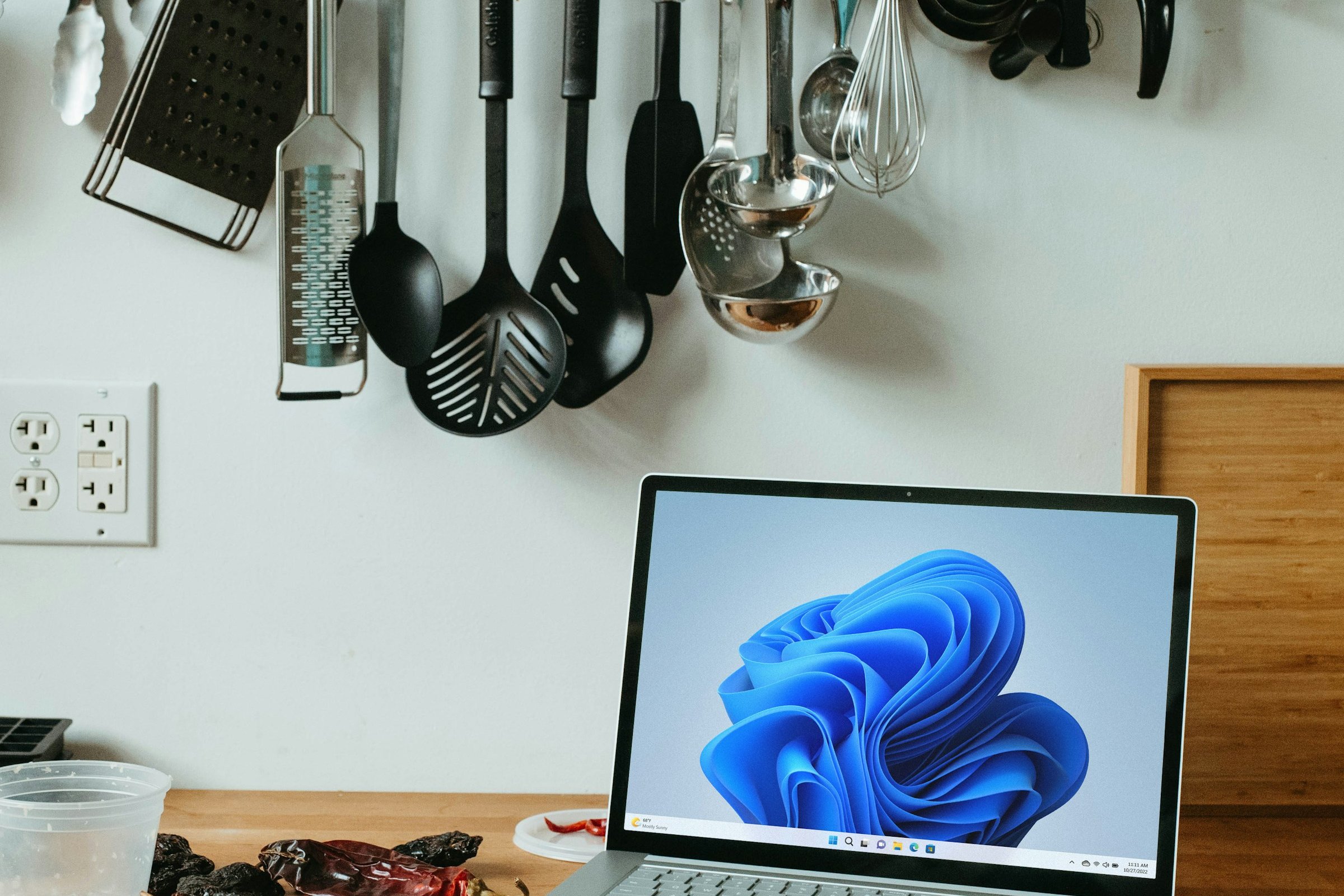
For most small and mid-sized businesses, Windows 11 is no longer a decision to make — it is one that has already been made, whether they know it or not. According to StatCounter, Windows 11 accounted for around 72 percent of the world's PCs in February 2026, up from approximately 51 percent just two months earlier. The sharp jump came right after Windows 10 lost mainstream support in October 2025. The question is therefore not whether to switch, but whether you are getting more out of your machines than just a new logo on the login screen.
This guide covers both: how to migrate safely if you still have machines on Windows 10, and which business features in Windows 11 most companies have paid for but never enabled. The focus is on security, because that is where the gains are greatest and the risk of inaction is clearest.
Everything here is based on public sources: Microsoft's own product documentation, Microsoft's Digital Defense Report, and the recommendations of Nasjonal sikkerhetsmyndighet (Norway's National Security Authority). No anonymised customer cases, no "we have seen" anecdotes. Datafolka provides IT consulting and is a reseller of hardware and software, so we disclose upfront that we have an interest in this field. The guide is nonetheless written to help you make the decisions yourself.
Windows 10 is over: why delay costs more than migration
Microsoft ended mainstream support for Windows 10 on 14 October 2025. After that date, free security updates and bug fixes are no longer available for most editions. The machine does not stop working, and that is precisely what makes the risk easy to underestimate: it looks the same as before, it does the job, and nothing sounds an alarm. But every new vulnerability discovered after October 2025 remains open on a Windows 10 machine without extended support.
Microsoft offers a paid Extended Security Updates programme (ESU) that extends security updates for up to three years for businesses that need more time. It is a sensible bridge for a fleet you cannot replace overnight, but it is a bridge, not a destination. The money spent on ESU buys time, not a permanent solution, and that time should be used to plan replacement and upgrade, not to postpone the same decision by another year.
Why does this matter for a small business that is "not interesting enough" to be targeted? Because that picture is outdated. Microsoft's Digital Defense Report describes a threat landscape in which attacks are largely automated and directed at whatever is vulnerable, not at whatever is large. The report refers to hundreds of millions of identity attacks per day, the vast majority exploiting passwords and known weaknesses. An outdated machine without updates is not below the radar — it is exactly the kind of target automated attacks find first. It is also worth noting that Nasjonal sikkerhetsmyndighet consistently lists updated software and the removal of outdated systems among the most effective baseline measures any organisation can take.
Hardware requirements in practice: what blocks an upgrade
What most often prevents a business from upgrading is not the price — it is the hardware requirements. Windows 11 requires TPM 2.0, a small security chip that stores encryption keys, UEFI firmware with Secure Boot, a supported 64-bit processor, and at least 4 GB RAM and 64 GB storage. RAM and storage are rarely the issue on a business machine. TPM and the processor requirement are what actually decide the matter.
Here is an important nuance many overlook: TPM 2.0 and Secure Boot are present on most machines purchased from 2018 onwards, but they are often disabled from the factory. A machine that PC Health Check reports as "not compatible" can in many cases be upgraded once someone goes into BIOS and enables TPM (sometimes called PTT on Intel or fTPM on AMD) and Secure Boot. That is a free fix taking a few minutes per machine, and it is worth checking before concluding that a machine must be replaced.
If the processor is too old to appear on Microsoft's list of supported models, however, no BIOS setting will help. The machine has genuinely reached the end of the road for Windows 11, and it is better to plan replacement than to look for workarounds. Microsoft has made it technically possible to bypass the requirements, but a business should not do this: a machine without TPM loses precisely the security features that are the whole point of upgrading, and such installations are not guaranteed to receive updates.
15 business features in Windows 11 that most companies never use
Windows 11 is often sold on its visible changes: centred Start menu, rounded corners, Snap Layouts. Most business features, however, sit under the hood and require someone to enable them. Here are fifteen that are built in and deliver real value for a business, with a brief explanation of what each one actually does.
- BitLocker disk encryption: encrypts the entire system drive so that a lost or stolen machine does not give access to the data. On Windows 11 with TPM 2.0, this can be enabled and managed centrally. It is the simplest measure against data loss when a laptop goes missing.
- Windows Hello for Business: sign-in with face recognition, fingerprint, or a PIN tied to the device, instead of a password that can be phished. Removes the password as the weakest link.
- Microsoft Defender for Business: EDR protection with detection, automated investigation, and vulnerability management, included in Microsoft 365 Business Premium.
- Conditional Access: rules for who can log in to what, from which devices, and under which conditions. Together with Microsoft Entra ID, you can require MFA or block sign-in from unknown countries.
- Windows Autopilot: a new machine is configured automatically the first time it is switched on, with the correct apps and policy, without IT needing to touch it physically.
- Microsoft Intune: centralised management of machines and mobile devices, where you can enforce encryption, remotely wipe lost devices, and roll out settings to the entire fleet.
- Windows Sandbox: a disposable, isolated desktop where you can open a suspicious file or test an unknown app without it touching the rest of the machine.
- Hyper-V: built-in virtualisation to run a test machine or a legacy app in its own environment, without additional software.
- WSL2 (Windows Subsystem for Linux): run Linux tools directly in Windows, useful for development and technical tasks without a separate Linux machine.
- Snap Layouts: quickly arrange multiple windows side by side in fixed configurations. A small feature, but it saves many clicks in daily work.
- Focus Sessions: a built-in concentration tool that silences notifications for a chosen period, integrated with Clock and Tasks.
- Phone Link: connects a phone to the PC for messages, notifications, and files, so employees don't need to switch devices for small tasks.
- Windows Terminal: a modern terminal with tabs and profiles for Command Prompt, PowerShell, and WSL in a single window. Worth it for anyone who works technically.
- PowerShell for automation: built-in scripting language for automating repetitive tasks, from user creation to report extraction.
- Sysinternals tools: Microsoft's free collection for deep-level diagnostics and troubleshooting, invaluable when a machine behaves oddly and you want to know why.
You do not need to adopt all fifteen. The four that deliver the most security for the effort are BitLocker, Windows Hello for Business, Defender for Business, and Conditional Access. Start there and you will have moved your business further than most competitors on security without buying a single new licence.

Security baseline 2026: what to enable first
A default Windows 11 installation is reasonably secure, but it is not configured for a business. The difference lies in a security baseline: a set of settings you decide should apply to all machines. Microsoft makes this easier than it sounds, because they publish ready-made Security Baselines for Windows 11. These are packages of recommended settings you can import into Microsoft Intune or via Group Policy, instead of manually toggling hundreds of settings one by one.
For a small business, order matters more than completeness. Start with the measures that give the most protection per unit of effort:
- Enable BitLocker on all laptops. An encrypted drive turns lost equipment into lost equipment, not a data breach.
- Require MFA via Conditional Access. Multi-factor authentication is the single measure that stops most account attacks, and it stops them even when the password has been compromised.
- Introduce Windows Hello for Business so employees move away from passwords where possible.
- Set up automatic updates with a short installation window. Patch known vulnerabilities within days, not months.
- Import Microsoft's Security Baseline as a foundation, and adjust downward rather than building from scratch.
The point of a baseline is that security becomes something the machine has from day one, not something a busy employee has to remember to do. When settings are managed centrally, they also apply to the next machine you purchase, without anyone needing to remember it.
Defender, CrowdStrike, or Sophos: when is Defender enough?
Many small businesses believe they need to purchase a separate security vendor in addition to Windows. Often that is not the case. Microsoft Defender for Business, included with Microsoft 365 Business Premium, provides EDR functionality, automated investigations, and vulnerability management, integrated into tools you are already paying for. For a typical Windows-based business with up to a few dozen employees, it covers most real-world needs.
A dedicated third-party solution such as CrowdStrike or Sophos becomes relevant when one of these situations genuinely applies:
- Customers or insurers require it. Some contracts and insurance terms specify a particular type of security solution or round-the-clock monitoring.
- You need monitoring you cannot cover internally. A vendor with a 24/7 security operations centre provides response at all hours, something a small business rarely manages in-house.
- Your device fleet is mixed. A lot of Mac, Linux, or specialist hardware can make a platform-agnostic solution more practical than Microsoft's own.
The rule is simple: do not pay for an extra layer until a concrete need makes it necessary. For many small businesses, the right order is to fully use what they already have in Microsoft 365, and upgrade when requirements actually change. It is cheaper and there is less to maintain.
Migration from Windows 10, step by step
If you still have machines on Windows 10, migration is the most important work you will do with your fleet this year. It does not need to be dramatic, but it should be planned. The approach below is the same whether you have five or fifty machines — the difference is just the volume of tooling involved. The details for each step are in the walkthrough further down the page.
In brief: audit which machines can run Windows 11, take a verified backup, test your key apps on a couple of pilot machines, choose manual upgrade or Autopilot based on fleet size, roll out in waves, and apply the security baseline as soon as each machine is up. The most common mistake is not technical — it is skipping the pilot and discovering a compatibility issue when the entire business is already mid-transition.
What should you budget in time and money? For a business with mostly compatible machines, the upgrade is primarily a labour commitment, not a licence cost: upgrading from Windows 10 to Windows 11 is free for machines that meet the requirements. The real cost falls into three categories: machines that must be replaced because they are too old, the hours IT or an external partner spends on the pilot, rollout, and baseline, and any time needed to fix an industry application that does not cooperate. Plan over several weeks, not a single evening, and prioritise machines handling sensitive data first. The most expensive outcome is almost always letting things drift until something breaks, not the migration itself.
Machines that do not meet the Windows 11 requirements — typically due to missing TPM 2.0 or an older processor — must be handled separately. First check whether TPM and Secure Boot are simply disabled in BIOS, as that is a free fix. If the machine is genuinely too old, the choice is to replace it, buy time with ESU, or decommission it. What you should not do is leave it on Windows 10 without updates while it still has access to the network.
Common problems after migration, and what actually fixes them
Most problems after moving to Windows 11 are well known and have concrete solutions. Here are the ones that come up most often in a business setting:
- Start menu or search responds slowly: a restart usually resolves it, and if not, running the built-in Search and Indexing troubleshooter helps. The problem typically relates to the index rebuilding heavily right after the upgrade, and it settles within a day.
- OneDrive conflicts and duplicate files: arise when documents were stored locally and OneDrive was set up during the migration. Check the sync status, resolve the conflicts OneDrive flags, and decide on a single location for documents before rolling out further.
- Machine does not wake from sleep: almost always an outdated driver, most commonly graphics or chipset. Update drivers from the manufacturer, not just via Windows Update.
- Machine feels slow the first few days: Windows is indexing, downloading drivers, and tidying up after the upgrade in the background. Give it a day or two of normal use before concluding that something is wrong.
- A specialist application will not start: this is exactly why you run a pilot first. Check the vendor's compatibility information, and use Microsoft's App Assure if the app is business-critical and you qualify.
The common thread is that the vast majority of problems are predictable and temporary. They only become difficult if you discover them across all machines at once, which is precisely the point of piloting and rolling out in waves.
In summary
Windows 11 is no longer a future question — it is where nearly everyone already is. The real difference between businesses comes down to whether you are using what you have: BitLocker, Windows Hello, Defender for Business, and Conditional Access are sitting unused in a licence most organisations are already paying for. If you still have machines on Windows 10, migration is the most important task, and it goes safely as long as you audit, pilot, and roll out in waves rather than all at once.
If you need help auditing your fleet, setting up a security baseline, or carrying out the migration without disrupting operations, Datafolka IT security and ongoing support cover exactly this. If you want to read more about the broader security picture first, we have a dedicated practical cybersecurity guide for small businesses, and a lighter overview of Windows 11 tips and tricks for everyday use.
Sources: Microsoft's product documentation and lifecycle pages (support.microsoft.com and learn.microsoft.com), Microsoft's Digital Defense Report (microsoft.com/security), StatCounter Global Stats for OS version share (gs.statcounter.com), and Nasjonal sikkerhetsmyndighet's basic security recommendations (nsm.no). Datafolka provides IT consulting and is a reseller of hardware and software.