Last updated: April 2026
Backup: Complete Guide for PC and Mac
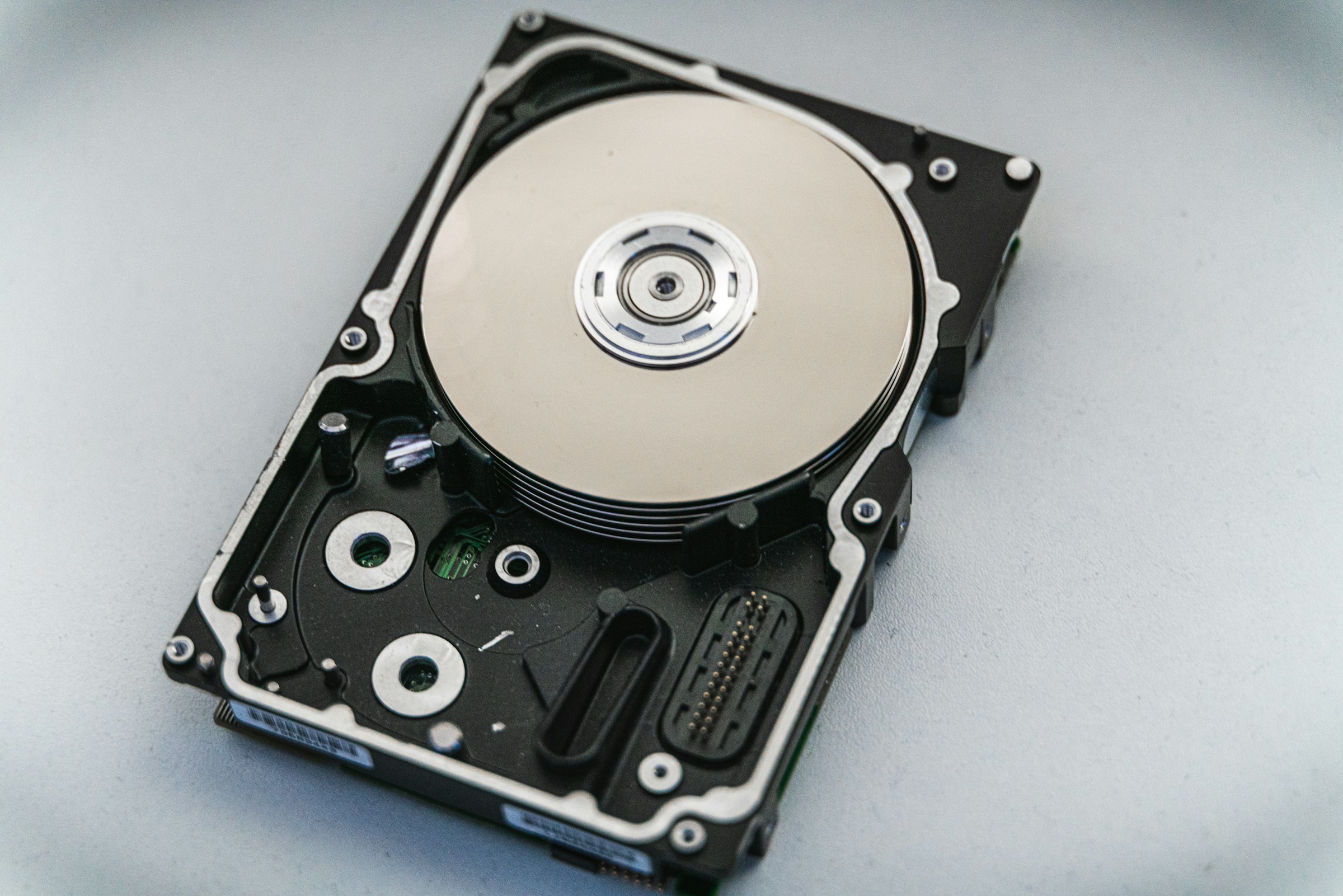
A backup protects your files against hard drive failure, theft, and ransomware. This guide explains the 3-2-1 rule, how to set up automatic backups using Windows File History or Mac Time Machine, and which cloud storage option suits you best. Set up a backup today — it takes under 15 minutes.
The 3-2-1 rule: The gold standard for backups
IT professionals use the 3-2-1 rule. It's simple:
- 3 copies of your data in total (the original plus two backups).
- 2 different storage media (for example, an internal drive plus an external drive).
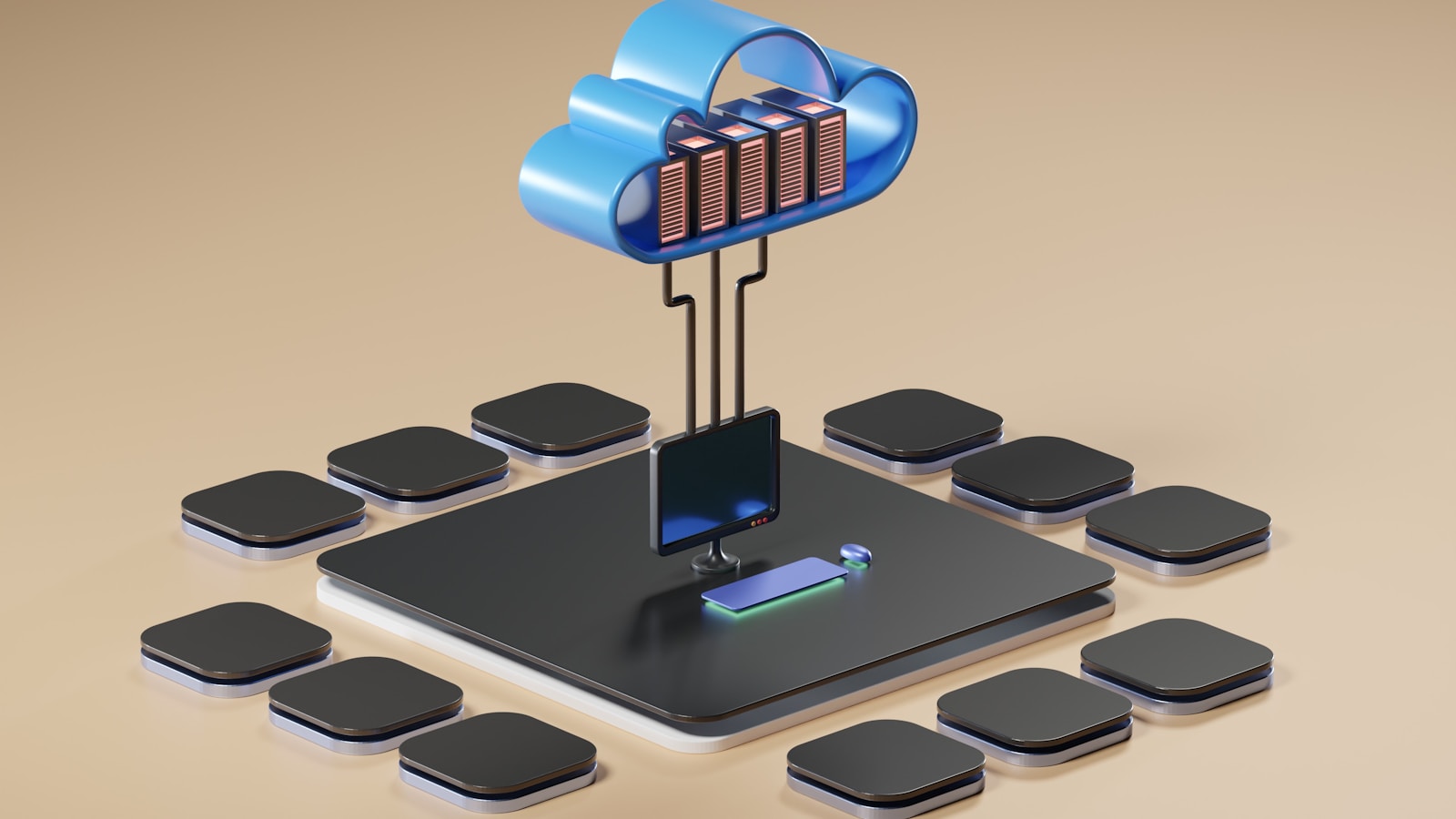
- 1 copy off-site (cloud storage or a drive kept at a different location).
The point is that no single failure should be able to take everything. A house fire can destroy both your PC and the external drive in the drawer. That's why you need a copy in the cloud or somewhere else.
What should you back up?
Start with what you cannot replace:
- Family photos and videos.
- Important documents: contracts, tax returns, insurance papers.
- Work-related files that don't exist anywhere else.
- Your password manager's database (if stored locally).
- Emails you want to keep.
You don't need to back up programs or the operating system. They can be downloaded and reinstalled. Your personal files are what are irreplaceable.
Windows: Set up automatic backups
Windows has built-in backup tools. The simplest is to use Windows Backup, which backs up your settings, apps, and files to your Microsoft account.
For a more complete solution, use File History. Connect an external hard drive, go to Settings, System, Storage, then "Advanced storage settings". Select "Backup options" and enable File History. Windows will then automatically copy folders such as Documents, Pictures, Music, and Desktop.
Set the backup frequency to at least once per hour. Also choose how long copies are kept. "Until space is needed" is a sensible choice for most people.
Mac: Time Machine is excellent
If you use a Mac, you have access to Time Machine. It's one of the best built-in backup solutions available. Connect an external drive and your Mac will automatically ask whether you want to use it for Time Machine.
Time Machine automatically backs up your entire system, including files, apps, and settings. You can go back to any version of a file or restore the entire machine. Apple's Time Machine guide explains the setup step by step.
Make sure the external drive is at least twice as large as your Mac's internal storage. Time Machine needs space for many versions over time.
Cloud storage: Your off-site backup
Cloud storage gives you the important off-site copy. The most common options:
- OneDrive: Included with Microsoft 365. 1 TB storage per user. Integrated into Windows.
- iCloud: The natural choice for Apple users. 50 GB for a small monthly fee, 200 GB for a bit more.
- Google Drive: 15 GB free, 100 GB for a modest monthly fee.
Choose the service that best fits the devices you use. If you use Windows and Office, OneDrive is the most convenient. If you use iPhone and Mac, iCloud is the simplest.
How often should you back up?
Think of it this way: if your drive died right now, how much work would you lose? If the answer is "more than I can live with", you're not backing up often enough.
For most people, daily automatic backups are sufficient. File History and Time Machine can run every 15 minutes without you noticing. Cloud storage syncs continuously. The most important thing is that it happens automatically. Manual backups are guaranteed to be forgotten.
Test that your backup actually works
A backup you've never tested is no backup at all. Try restoring a file from your backup. Do it now. If you can't, you have a problem — and it's far better to discover it now than the day you actually need those files.
Also check that your backup tool is actually running. It's surprisingly common for it to have stopped without anyone noticing. Set a calendar reminder: check your backup once a month.
External hard drive or NAS?
A simple USB hard drive is the cheapest solution and works well for most people. Buy one with 1 to 2 TB of capacity — that will last a long time.
If you have multiple machines in the household, a NAS (network-attached storage) system may be worth the investment. It's a small box that connects to your router and acts as a private cloud server. Everyone in the family can back up automatically. If you need guidance setting up a backup or NAS, computer help from Datafolka can get you started.
Summary
Set up automatic backups today. Use the 3-2-1 rule: three copies, two media, one off-site. Windows has File History, Mac has Time Machine. Combine with cloud storage for protection against fire and theft. And test that it works. The day you need your backup, it's too late to regret never setting one up.