Last updated: April 2026
Outlook Not Working? Email Troubleshooting Step by Step
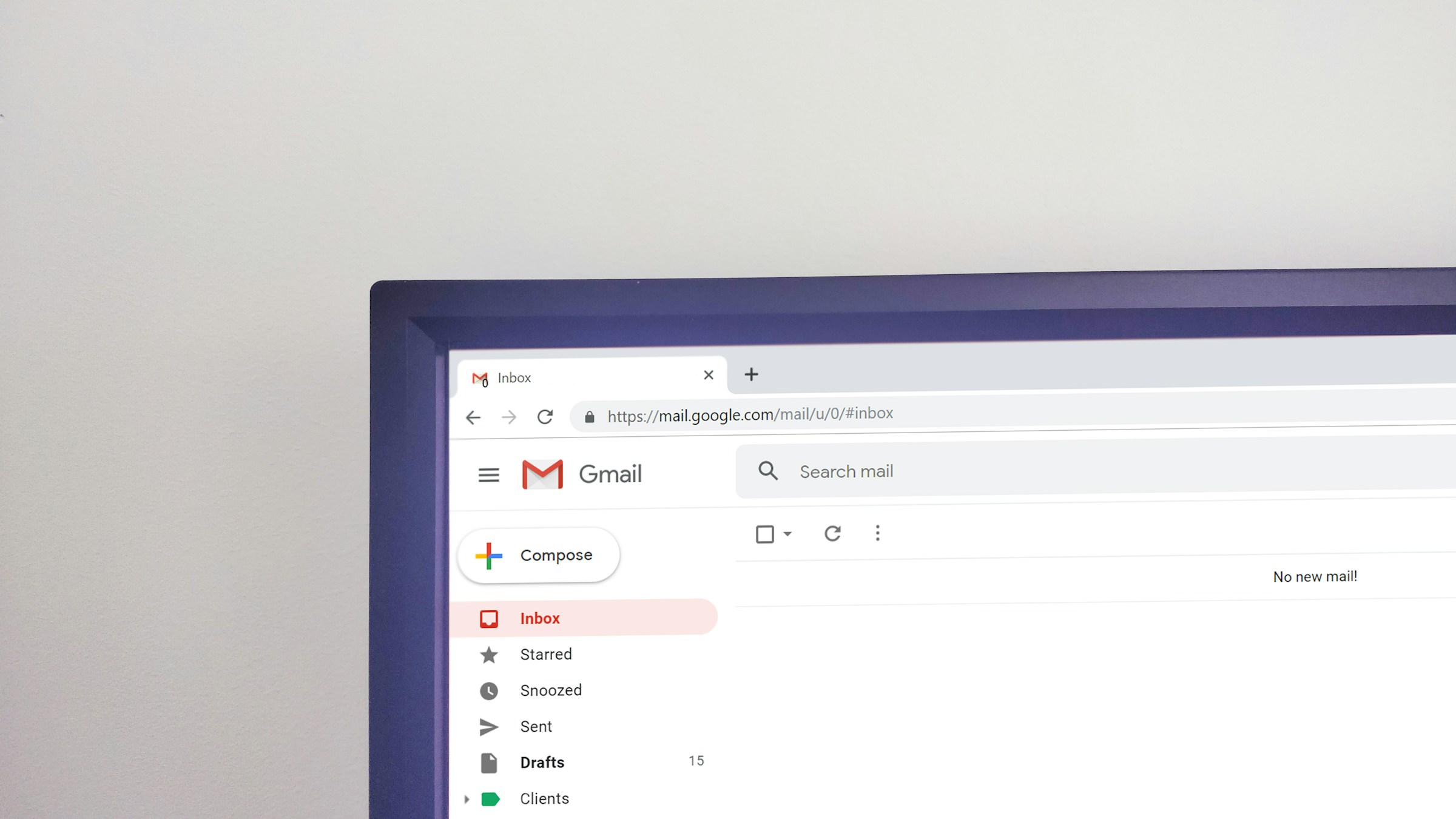
Outlook not working, or Gmail not sending email? The vast majority of email problems are caused by a wrong password, outdated server settings or a full mailbox. Here is a systematic walkthrough that solves the most common problems in Outlook, Gmail and other email services.
Start Here: Basic Checklist
Before you dig into settings, check these things first:
- Do you have an internet connection? Open a website to confirm.
- Does email work in a browser? Try logging in to webmail (outlook.com, gmail.com, etc.).
- Have you received an error message? Write it down or take a screenshot. It often tells you what's wrong.
- Is it just you with the problem, or everyone in the company? If everyone is affected, it's likely a server problem.
Does email work in the browser but not in the app? Then the problem is in the app or its settings, not in the email account itself.
Outlook: Common Problems and Solutions
Outlook Keeps Asking for Password
This is the most common Outlook problem. The cause is often that the password has been changed (for example through an automatic reset) or that two-factor authentication has been enabled without Outlook being configured for it.
Solution: Remove the account from Outlook and add it again. In Outlook for Windows: File, Account Settings, select the account and click Remove. Add it again with the correct password. For Microsoft 365 accounts, modern authentication is used, which opens a browser for login. Microsoft's Outlook support has detailed instructions for various versions.
Outlook Not Synchronising
Press F9 or click "Send/Receive All Folders" to force synchronisation. Check the status bar at the bottom. Does it say "Disconnected"? Click the text to reconnect. Also check that you haven't reached the storage limit. A full mailbox stops receiving new messages.
Outlook Is Slow
Do you have thousands of emails in your inbox? That slows Outlook down. Move old emails to folders. Disable add-ins you don't use: File, Options, Add-ins. Also check whether there's an update for Office.
Gmail: Common Problems and Solutions
Can't Log In
Google requires two-factor authentication for most accounts. If you're using an email client that doesn't support modern login, you need an app password. Go to myaccount.google.com, Security, and create an app password for your email client.
Emails End Up in Spam
Check the spam filter regularly. Gmail has an aggressive spam filter that sometimes catches genuine emails. Mark misclassified emails as "Not spam" to train the filter. You can also add trusted senders to your contact list, which reduces the risk of misfiltration.
Storage Is Full
Gmail shares 15 GB of free storage with Google Drive and Google Photos. If it's full, you can't receive new emails. Delete large attachments: search for "has:attachment larger:10M" in Gmail to find the biggest emails. Empty the bin afterwards. Google Gmail help has more tips for freeing up space.

IMAP vs. POP3: What's the Difference?
When setting up email manually, you need to choose between IMAP and POP3. Always use IMAP unless you have a specific reason to choose POP3.
- IMAP synchronises email between the server and all your devices. If you read an email on your phone, it's marked read on your PC too. If you delete it in one place, it's deleted everywhere.
- POP3 downloads email to one device and (usually) deletes it from the server. Use this only if you deliberately want email on just one machine.
Server Settings: When You Need to Configure Manually
Most email clients find the correct settings automatically. But sometimes you need to enter them manually. Here are the most common ones:
Microsoft 365 / Outlook.com:
- Incoming: outlook.office365.com, port 993 (IMAP, SSL)
- Outgoing: smtp.office365.com, port 587 (SMTP, STARTTLS)
Gmail:
- Incoming: imap.gmail.com, port 993 (IMAP, SSL)
- Outgoing: smtp.gmail.com, port 587 (SMTP, STARTTLS)
For other email providers: check the provider's help pages. Search for "[provider name] IMAP settings". Always use SSL/TLS encryption. Never set up email without encryption.
Password Reset: How to Get Back In
Forgotten your password? All major email providers have a "Forgot password" function. You typically need access to a phone number or an alternative email address you've registered.
If you haven't set up any recovery methods, it gets harder. Microsoft and Google both have processes to verify your identity, but it can take time. The lesson: always set up a recovery phone number and an alternative email address. Do it today.
Sync Errors on Mobile
Not getting email on your phone? Try these steps:
- Check that you have mobile data or WiFi.
- Open the email app and pull down to update manually.
- Check that the account hasn't been logged out. Many apps require you to log in again after a password change.
- Remove the account from the app and add it again.
- Check that the app has permission to use data in the background (Settings, Apps).
When Should You Contact IT Support?
If you've gone through all the steps above without solving the problem, it may be something that requires access to server settings or administrator rights. If you work at a company, contact the IT department. If you're an individual and stuck, computer help from Datafolka can help you troubleshoot and fix email problems.
Summary
Check your internet connection and webmail first. Most problems are caused by a wrong password or outdated settings. Always use IMAP. Make sure you have enough storage space. And set up recovery methods for all email accounts. It takes five minutes now, but can save you hours of frustration later.